
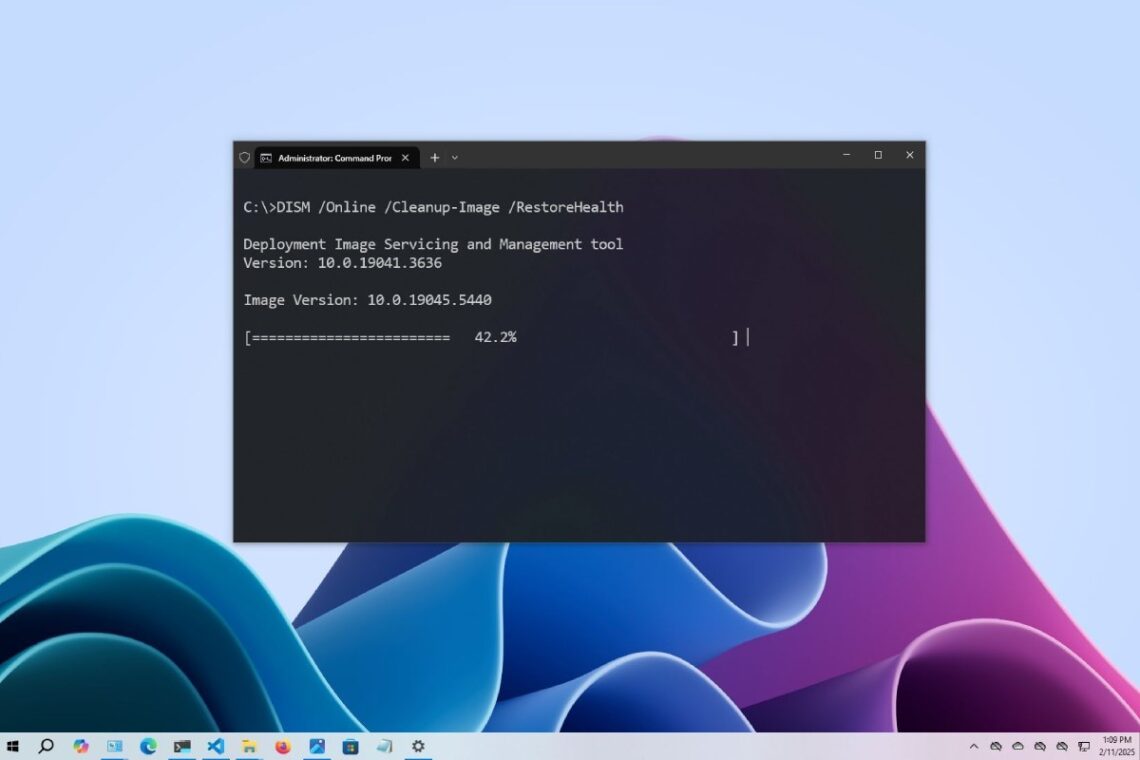
The command dism /online /cleanup-image /restorehealth is one of the most powerful built-in tools in Microsoft Windows that helps users fix serious system issues without reinstalling the operating system. In India, where many users rely on budget laptops, older desktops, or systems affected by unstable power supply and software corruption, this command plays a crucial role in maintaining system health. Whether you are dealing with Windows Update failures, random crashes, or slow performance, DISM can often resolve the problem efficiently.
DISM stands for Deployment Image Servicing and Management, and it works by repairing the Windows image stored in the system. This image is responsible for providing clean system files whenever needed. If the image itself becomes corrupted, tools like System File Checker (SFC) may fail. That’s where DISM becomes essential—it fixes the source from which repairs are made.
Understanding the Command Structure

The command may look complicated at first, but it is actually made up of simple components that define what action the tool performs.
Command Breakdown Table
| Component | Description | Purpose |
| DISM | Tool name | Executes Deployment Image Servicing and Management |
| /Online | Active system | Targets the currently running Windows OS |
| /Cleanup-Image | Operation | Initiates cleanup and repair process |
| /RestoreHealth | Repair action | Detects and fixes corruption automatically |
When executed, the command scans the system image for corruption, identifies damaged files, and replaces them with healthy versions using Windows Update or a local source.
Why This Command Matters for Indian Users
In India, many systems are exposed to issues such as improper shutdowns due to power cuts, installation of unofficial software, and limited system resources. These factors can corrupt Windows files over time. Instead of reinstalling Windows—which can be time-consuming and require technical knowledge—DISM offers a simpler and safer alternative.
It is particularly useful because it preserves personal files, works on most versions of Windows 10 and 11, and does not require advanced technical skills. Even users with basic knowledge can run this command and fix major system issues.
Key DISM Commands Explained
DISM provides multiple options to check and repair system health. Each command serves a different purpose.
DISM Health Commands Table
| Command | Function | Repair Capability | Time Required |
| /CheckHealth | Quick scan for corruption | No | Few seconds |
| /ScanHealth | Detailed scan | No | Several minutes |
| /RestoreHealth | Scan and repair | Yes | 10–60 minutes |
Among these, /RestoreHealth is the most comprehensive option, as it not only detects problems but also fixes them automatically.
How the Command Works Internally
When you run the command, Windows begins by checking the integrity of the system image. If corruption is detected, DISM attempts to download the required files from Windows Update servers. In cases where the internet is slow or unavailable, users can provide a local Windows ISO file as a repair source.
The process may seem slow or stuck at certain percentages, but this is normal. The tool performs deep system-level checks, which can take time depending on the condition of your PC.
Step-by-Step Usage Guide
Using this command is straightforward and requires only a few steps.
Execution Steps Table
| Step | Action |
| 1 | Open Start menu and search for Command Prompt |
| 2 | Right-click and select “Run as Administrator” |
| 3 | Type the DISM command |
| 4 | Press Enter and wait for completion |
dism /online /cleanup-image /restorehealth it is important to keep the system powered on during the process and avoid interrupting it.
When Should You Use This Command?
This command is not needed for every issue, but it is highly effective in specific situations. It is especially useful when system files are corrupted or when Windows updates fail repeatedly.
Usage Scenarios Table
| Issue | Use DISM? | Explanation |
| Windows Update errors | Yes | Fixes update-related corruption |
| Frequent crashes | Yes | Repairs damaged system files |
| Slow performance | Sometimes | Helps if caused by corruption |
| Malware infection | No | Requires antivirus tools |
| Hardware failure | No | Not related to software |
DISM vs SFC – Key Differences
Many users confuse DISM with the System File Checker tool. While both are used for repair, they serve different purposes.
Comparison Table
| Feature | DISM | SFC |
| Repair level | System image | Individual files |
| Internet required | Sometimes | No |
| Usage order | First | Second |
| Effectiveness | High for deep issues | Limited to file repair |
Experts recommend running DISM first and then using SFC for complete system repair.
Common Errors and Their Solutions
While using DISM, users may encounter certain errors. Most of these can be fix easily with the right approach.
Error Fix Table
| Error Code | Cause | Solution |
| 0x800f081f | Missing files | Use Windows ISO as source |
| Stuck at percentage | Heavy processing | Wait patiently |
| Access denied | Lack of admin rights | Run as administrator |
| Operation failed | Severe corruption | Use advanced repair options |
Understanding these errors helps users troubleshoot effectively without panic.
Advanced Usage Without Internet
In areas with slow internet connectivity, which is common in some parts of India, users can perform repairs using a local Windows image file.
Advanced Command Example
DISM /Online /Cleanup-Image /RestoreHealth /Source:WIM:C:\install.wim:1 /LimitAccess
Advanced Options Table
| Parameter | Function |
| /Source | Specifies location of repair files |
| /LimitAccess | Prevents use of Windows Update |
| /LogLevel | Generates detailed logs |
This method ensures that repairs can completed even without internet access.
Best Practices for Effective Use
To get the best results, users should follow a proper sequence and take certain precautions. Running DISM before SFC ensures that the system image is healthy, allowing SFC to repair files more effectively.
Recommended Workflow Table
| Step | Command |
| 1 | DISM RestoreHealth |
| 2 | SFC Scan |
| 3 | Restart system |
Users should also ensure a stable power supply, especially in regions prone to power outages, and avoid interrupting the process midway.
Conclusion
The command dism /online /cleanup-image /restorehealth is an essential tool for maintaining Windows system stability. It provides a powerful way to fix deep-rooted issues without reinstalling the operating system. For users in India, where system issues often arise due to power instability, outdated hardware, or software conflicts, this command offers a reliable and efficient solution.
By understanding how it works and when to use it, users can significantly improve system performance and extend the life of their devices. Combined with tools like SFC and proper maintenance practices, DISM becomes a key part of any Windows troubleshooting toolkit.